Report Results Panel
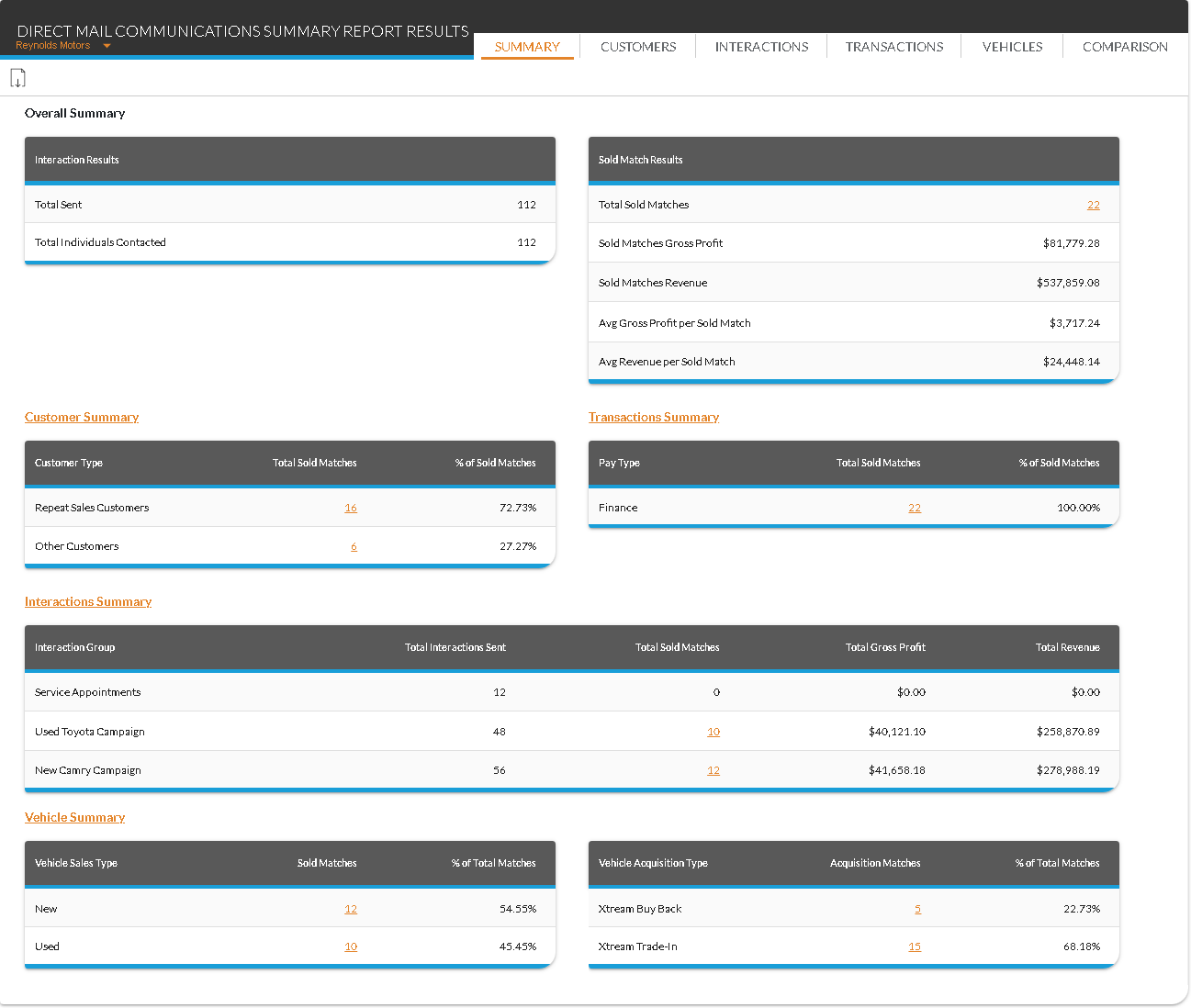
The Report Results panel on the Direct Mail Communications Summary screen is used to view the Direct Mail Communications Summary report, which can be used to review the effectiveness of direct mail marketing materials. Using this report, managers can review the number of direct mail pieces that were sent, the number of individuals contacted, and the number of vehicle sales associated with the direct mail. In addition, managers can review the profit and revenue generated from the vehicle sales.

|
To access the Report Results panel, enter criteria in the Report Criteria panel on the Direct Mail Communications Summary screen. Then click the RUN button. |
To export the information on this panel, click the  (Export Report) icon. The Export Report? window displays. Select a file format, such as .csv,.pdf, or .xlsx, and click the EXPORT button. The results are exported in the selected file format and are saved to the PC or network drive.
The following tabs display on this panel:
-
Summary tab. This tab is used to review an overview of sales information included on the Direct Mail Communications Summary report, including the number of customers contacted by direct mail, the revenue generated by sold matches, and the number of vehicles sold.
-
Customers tab. This tab is used to review sales information based on the type of customers involved in the vehicle sales as well as details about each direct mail piece sent to customers.
-
Interactions tab. This tab is used to review sales information based on the type of interaction that generated each sale, such as service appointments or sales campaigns.
-
Transactions tab. This tab is used to review sales information based on the deal type, such as cash or finance.
-
Vehicles tab. This tab is used to review sales information based on vehicle type, such as new or used.
-
Comparison tab. This tab is used to request the Direct Mail Communications Summary report for two time frames and compare the results.
Click here for a list of products that may be mentioned in this help file.